Automation Testing 2
- Explain the difference between selenium IDE, Selenium WebDriver and Selenium Grid
Selenium is a popular open-source framework for automating web browser interactions. It provides several components, each designed to address different aspects of testing web applications. The primary components are Selenium IDE, Selenium WebDriver, and Selenium Grid. Here’s a breakdown of the differences between these components:
1. Selenium IDE
Selenium Integrated Development Environment (IDE) is a tool primarily used for recording and playing back tests in web browsers. It’s a browser extension available for Chrome and Firefox.
2. Selenium WebDriver
Selenium WebDriver is a more advanced tool that provides a programming interface for creating and executing browser-based tests. Unlike Selenium IDE, it allows you to write complex test scripts in various programming languages.
3. Selenium Grid
Selenium Grid is a tool used to run tests in parallel across multiple machines and browsers. It is especially useful for large test suites or environments where cross-browser testing is necessary.
Summary of Differences
| Aspect | Selenium IDE | Selenium WebDriver | Selenium Grid |
| Primary Function | Record and playback tool | Advanced browser automation framework | Parallel test execution across multiple machines |
| Programming | No programming required | Requires coding in supported programming languages | Used in conjunction with WebDriver for parallel tests |
| Complexity | Easy to use, suitable for beginners | More complex, requires coding skills | Requires setup of hub-node architecture |
| Test Flexibility | Limited flexibility | Highly flexible and powerful | Adds parallel execution capability to WebDriver |
| Use Case | Simple test cases, quick prototyping | Automated functional and regression testing | Large-scale, cross-browser, and distributed testing |
| Cross-Browser | Limited (specific to the browser plugin) | Extensive cross-browser support | Extensive cross-browser and cross-platform support |
- Write a selenium script in java to open google and search for "Selenium Browser Driver"
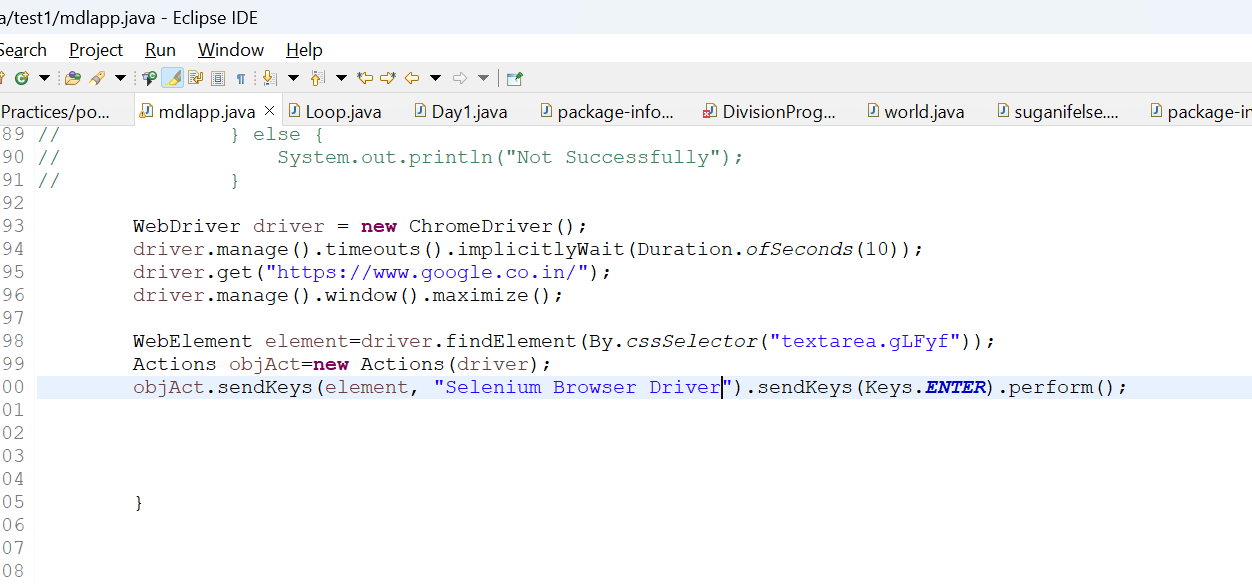
- What is selenium ? how it is useful in automation testing
Selenium is an open-source suite of tools designed for automating web browsers. It provides a framework for testing web applications, allowing developers and testers to simulate user interactions with a web browser, perform various operations, and validate the results. Selenium supports multiple programming languages, browsers, and platforms, making it a versatile choice for web application testing.
Components of Selenium
Selenium IDE (Integrated Development Environment)
Selenium WebDriver
Selenium Grid
How Selenium is Useful in Automation Testing
Cross-Browser Testing:
- Selenium supports testing across various browsers like Chrome, Firefox, Safari, Edge, and more. This ensures that your web application behaves consistently across different browser environments.
Multiple Language Support:
- Selenium can be used with several programming languages, including Java, Python, C#, Ruby, and JavaScript. This flexibility allows testers to use the language they are most comfortable with or that best fits their project needs.
Platform Independence:
- Selenium tests can be run on different operating systems like Windows, macOS, and Linux, making it a versatile tool for diverse development and testing environments.
Integration with CI/CD Tools:
- Selenium integrates well with continuous integration/continuous deployment (CI/CD) tools like Jenkins, GitLab CI, and others. This allows for automated testing as part of the software development pipeline, ensuring that code changes are tested immediately after they are made.
Parallel Test Execution:
- With Selenium Grid, tests can be executed in parallel across multiple machines and browsers. This greatly reduces the time required to run large test suites.
Support for Dynamic Web Applications:
- Selenium WebDriver can handle modern web applications with dynamic content, AJAX, and JavaScript-heavy pages. It can interact with elements on these pages in a way that mimics user behavior.
Active Community and Ecosystem:
- Selenium has a large, active community that continuously contributes to its development. There are also many third-party tools and frameworks built around Selenium, such as TestNG, JUnit, and Cucumber, which enhance its capabilities.
Cost-Effective:
Selenium is open-source, which means it is free to use. This makes it a cost-effective solution for automation testing, especially for small to medium-sized projects.
- What are all browser driver used in Selenium
In Selenium, browser drivers are used to establish a connection between the Selenium WebDriver and the specific web browser. Each browser requires its own driver to translate Selenium commands into browser-specific actions. Below are the commonly used browser drivers in Selenium:
1. ChromeDriver
Used For: Google Chrome
Description: ChromeDriver is a standalone server that implements the WebDriver's wire protocol specifically for Chrome. It is used to control Chrome browsers and is one of the most widely used drivers due to Chrome's popularity.
Download Link: ChromeDriver
2. GeckoDriver
Used For: Mozilla Firefox
Description: GeckoDriver serves as a bridge between Selenium WebDriver and Firefox, enabling Selenium commands to control Firefox. It uses Mozilla’s Marionette protocol to communicate with Firefox.
Download Link: GeckoDriver
3. EdgeDriver
Used For: Microsoft Edge (Chromium-based)
Description: EdgeDriver is used to control Microsoft Edge, especially after it transitioned to being Chromium-based. It works similarly to ChromeDriver but is specific to Edge.
Download Link: EdgeDriver
4. IEDriverServer
Used For: Internet Explorer
Description: IEDriverServer is used to automate Internet Explorer, specifically for older versions of IE. It supports both 32-bit and 64-bit versions, but it is generally less stable and slower than other drivers.
Download Link: IEDriverServer
5. SafariDriver
Used For: Safari
Description: SafariDriver is used to automate the Safari browser on macOS. It is built into Safari and does not require a separate driver download, starting from Safari 10 onwards.
Notes: SafariDriver is only available on macOS, and it requires enabling the "Allow Remote Automation" option in Safari’s Developer menu.
6. OperaDriver
Used For: Opera
Description: OperaDriver allows Selenium WebDriver to interact with the Opera browser. It is less commonly used but is available for those who need to test on Opera.
Download Link: OperaDriver
7. HtmlUnitDriver
Used For: Headless browser (HtmlUnit)
Description: HtmlUnitDriver is a special driver that operates a headless browser (HtmlUnit). It is used for testing web applications without a GUI, which makes it faster and useful for certain types of testing like smoke tests.
Notes: HtmlUnitDriver is Java-based and does not require a specific browser to run. It is ideal for quick, non-UI-dependent tests.
8. PhantomJSDriver (Deprecated)
Used For: Headless browser (PhantomJS)
Description: PhantomJSDriver was used to automate PhantomJS, a headless browser. However, PhantomJS is no longer actively maintained, and the driver is considered deprecated. Users are encouraged to use headless versions of Chrome or Firefox instead.
Alternative: Use ChromeDriver or GeckoDriver in headless mode.
9. Microsoft Edge Legacy Driver (Deprecated)
Used For: Microsoft Edge (Legacy version, pre-Chromium)
Description: This driver was used for the older, non-Chromium version of Microsoft Edge. It is now deprecated and has been replaced by the EdgeDriver for the Chromium-based Edge browser.
Alternative: Use EdgeDriver for Chromium-based Edge.
- What are the steps to Create a simple web driver script? Explain with code
Steps to Create a Simple WebDriver Script
Set Up Your Development Environment:
Install Java Development Kit (JDK).
Install an Integrated Development Environment (IDE) like Eclipse or IntelliJ IDEA.
Download Selenium WebDriver Java Client libraries.
Set up the browser driver executable (e.g., ChromeDriver for Google Chrome).
Add Selenium Libraries to Your Project:
Create a new Java project in your IDE.
Add the Selenium WebDriver JAR files to your project’s build path.
Write the Selenium WebDriver Script:
Import necessary Selenium packages.
Set up the WebDriver instance.
Open a web page.
Perform actions (e.g., search, click).
Validate results.
Close the browser.